Image Generation
The LLM Chat can create images from text prompts and edit images already in the conversation. The available tools depend on the default image provider and its configured model.
 Black Forest Labs (Flux) is the default provider — EU-hosted and GDPR-compliant. No additional setup is needed.Black Forest Labs (Flux)
 OpenAI
 Azure OpenAI
 Google Vertex AI
Generating an image
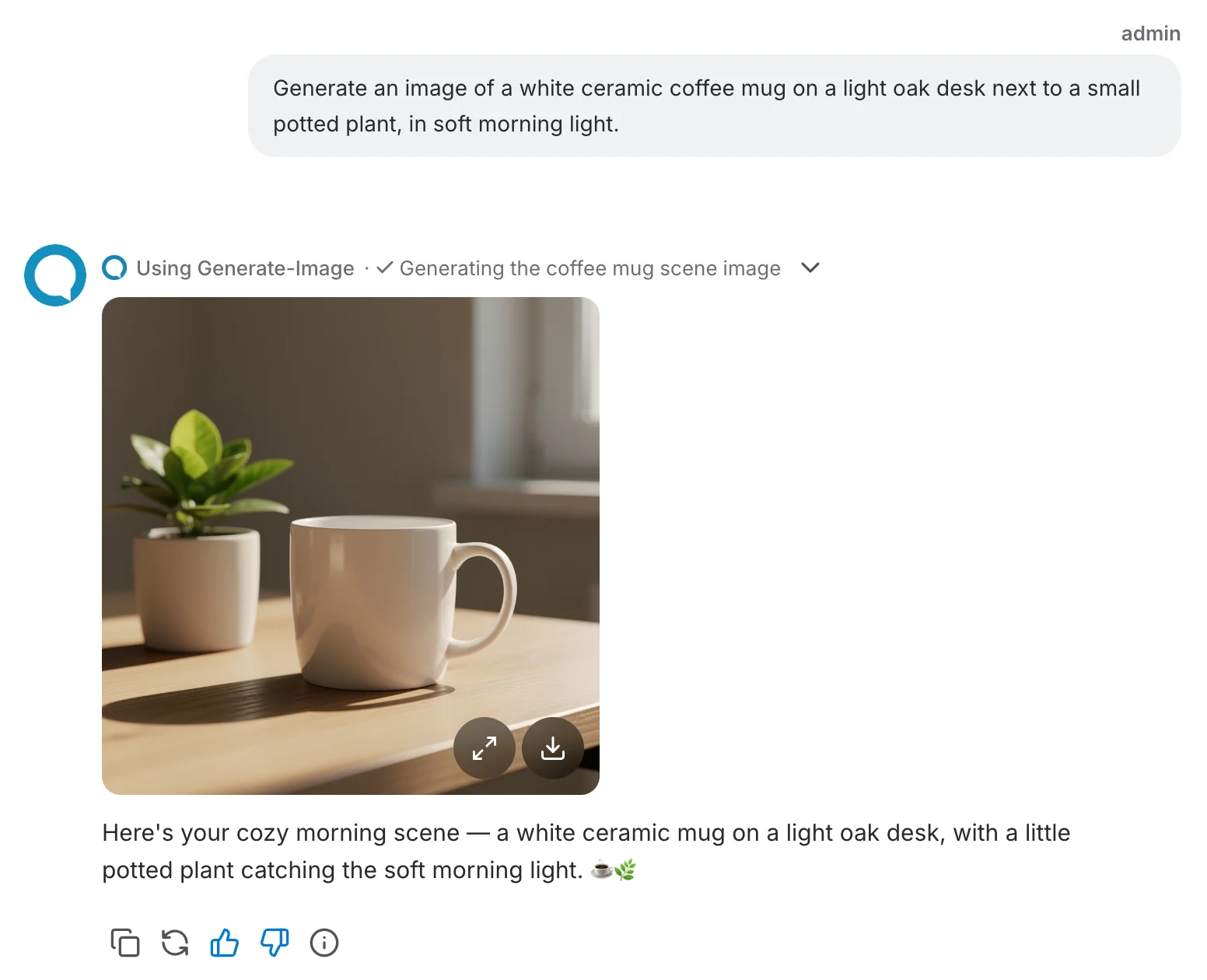
Ask the LLM to create an image in natural language. The model calls the Generate Image tool, returns the result inline in the chat, and describes what was generated.
Editing an image
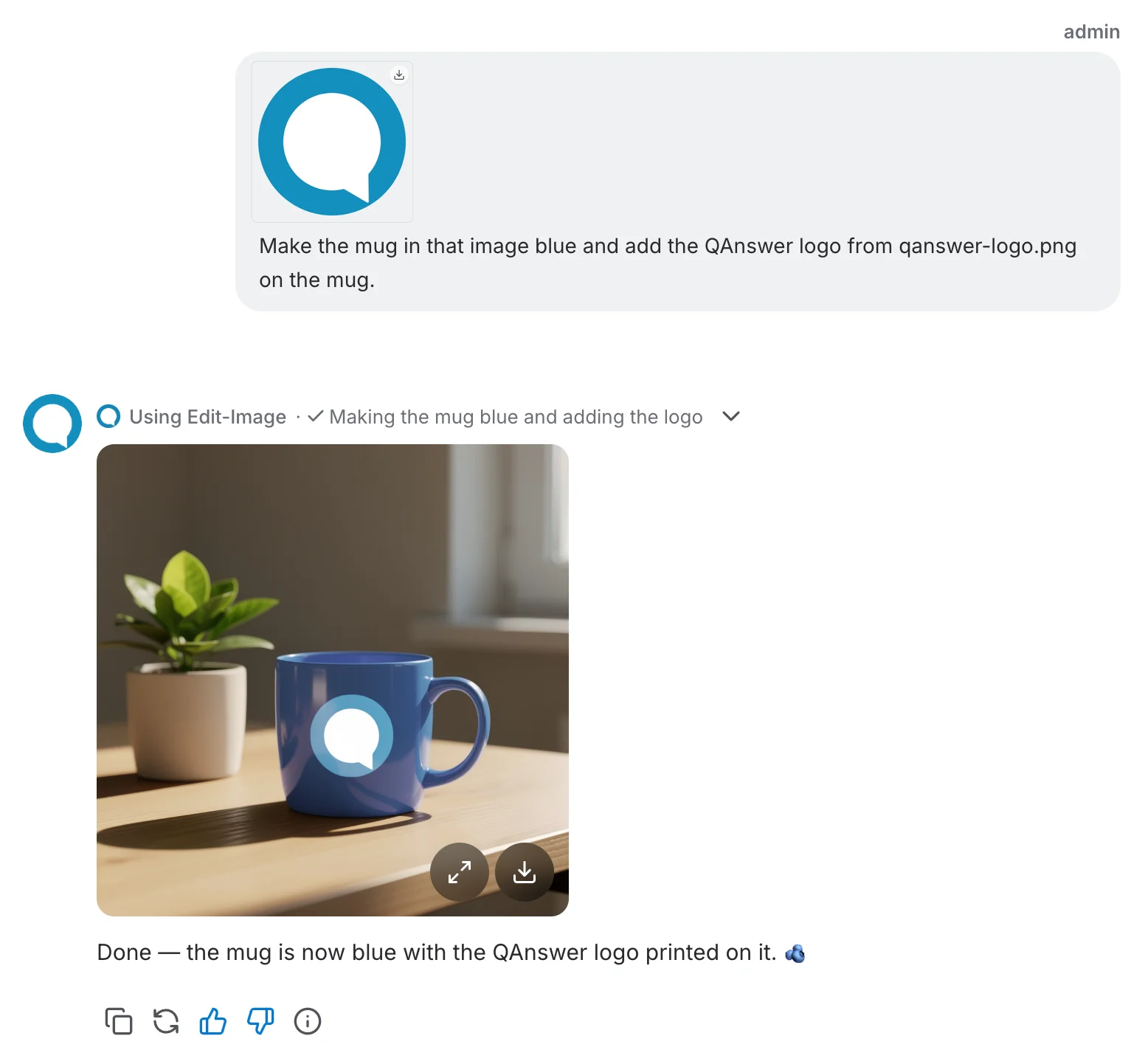
Upload demo-mug.png and qanswer-logo.png to the same conversation, or use a mug image generated earlier in the current branch and attach the logo. The mug is the image to edit; the logo is a second input image to place on it.
Example: “Turn the mug in demo-mug.png blue and add the QAnswer logo from qanswer-logo.png to the front of the mug. Keep the logo recognizable and preserve the rest of the scene.”
Combining images and making follow-up edits
When the model allows several input images, attach them to the same conversation and name the ones to combine. For a follow-up, refer to the previous result and describe only the next change. If the target is ambiguous, the assistant can ask which image you mean.
Follow-up example: “Make the QAnswer logo on the mug slightly larger, keeping the mug blue and everything else the same.”
When editing is unavailable
Ask an administrator to check the default image provider, model, and Image editing setting. The model suggestion labels show known capabilities; an unknown model has no labels. Automatic mode does not enable editing for an unknown model.
Each edit is limited by the configured maximum number of input images and the provider’s own capabilities. A prompt refused by the provider may need to be changed before another attempt.
Check image provider settings